Connect Google Ads to Joxy
If you already have a Google Ads account, ask the agent in Joxy chat to connect Google Ads. Use the connect chip, finish Google login, and select your Ads account.
Full flow
1 Ask in chat
2 Click connect chip
3 Log in with Google
4 Select Ads account
5 Confirm Connected
1. Before you start
- You already have access to the Google Ads account you want Joxy to use
- Use the Google login that can open that account in ads.google.com
- If you use a manager (MCC) account, make sure that Google user can see the child account
- Allow popups for www.joxy.ai (or your Joxy app URL)
You do not create a Google Cloud / developer project for this. Joxy opens a secure connect window and links your existing Ads account.
2. Connect in Joxy chat
-
Ask the agent for the connect chip
- Open https://app.joxy.ai and go to chat
- Ask something like: “Connect Google Ads”
- The agent will give you a Connect Google Ads chip in chat
- Click the chip
- If Joxy asks you to name the connection, enter a short label such as agency or brand (letters and numbers only)
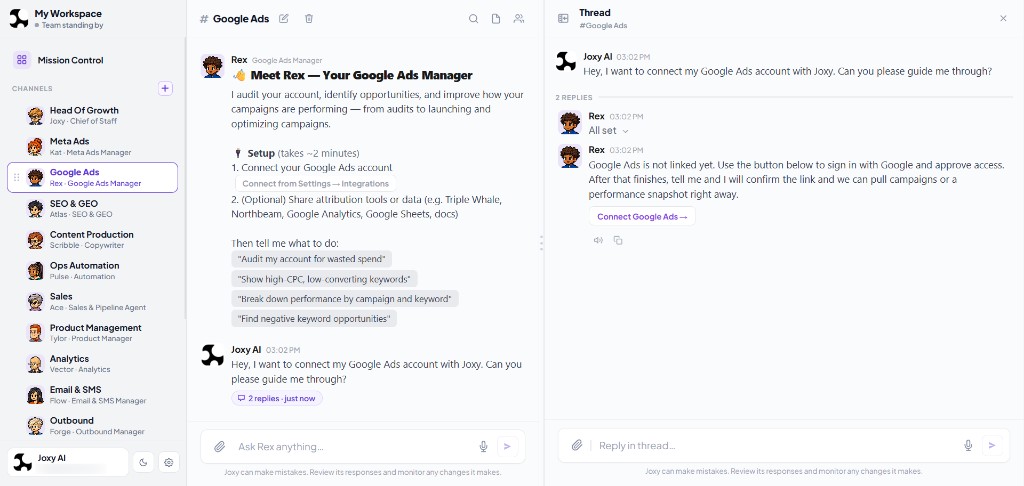
In chat, click Connect Google Ads → -
Finish the connect window
- A popup opens
- Sign in with Google
- Approve access for the Ads account you want Joxy to use
- Select the Google Ads account before you close the window
- Leave the window open until Joxy finishes linking
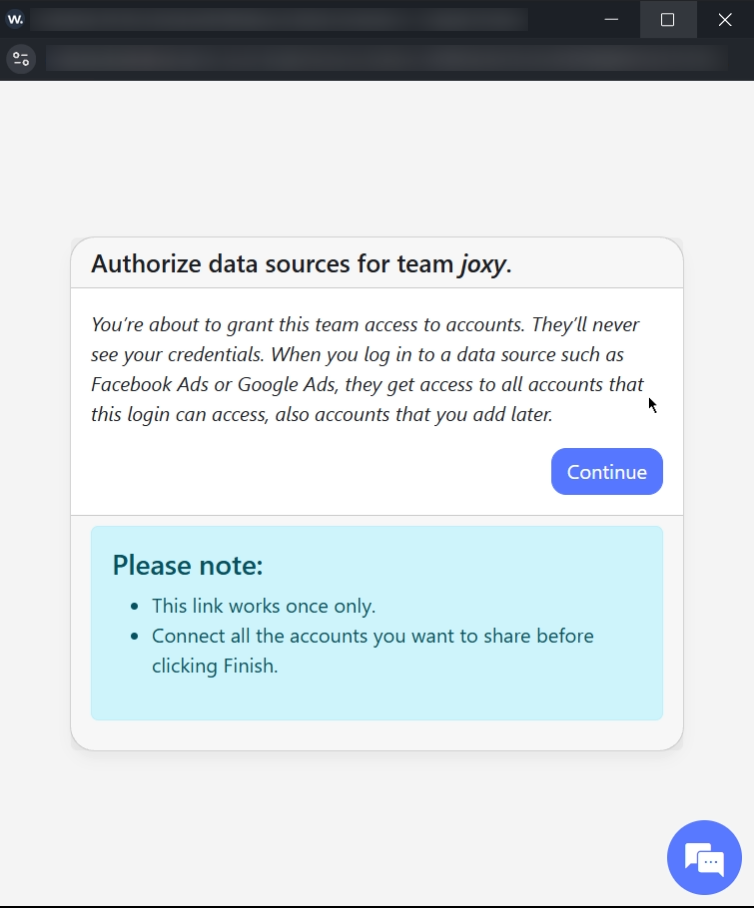
Click Continue to authorize data sources 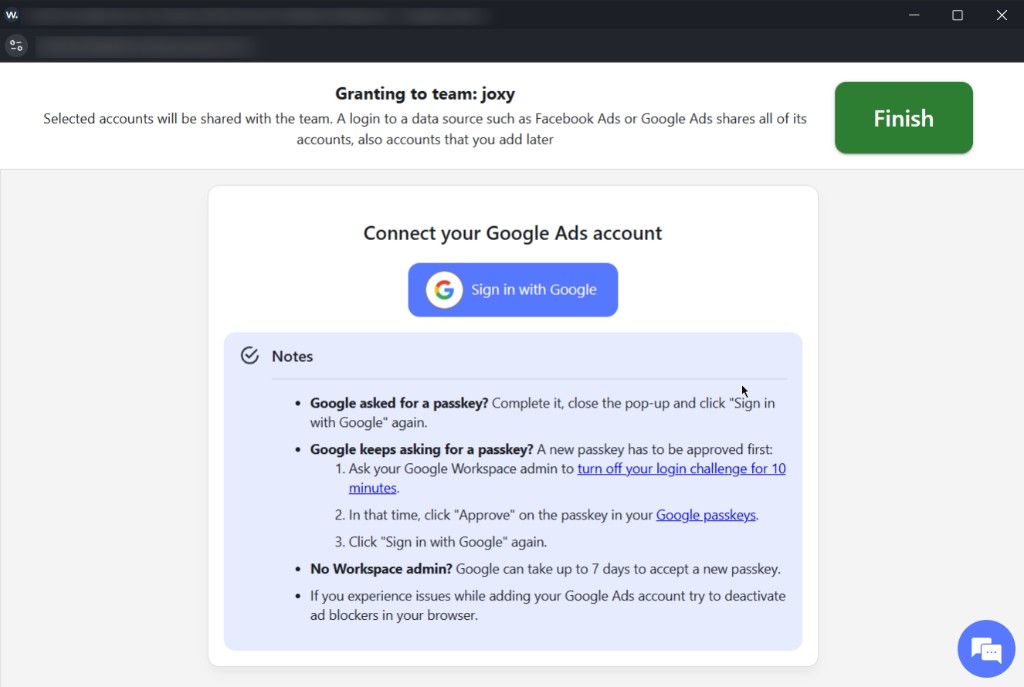
Click Sign in with Google 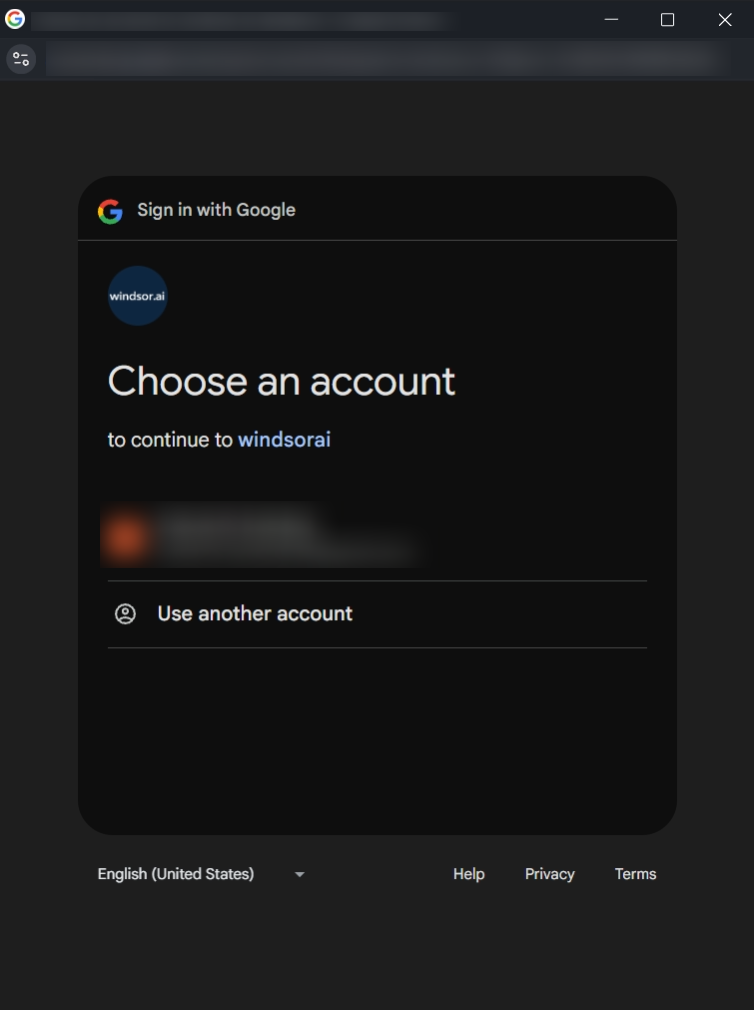
Choose the Google account that can open your Ads account -
Confirm it worked
- Back in chat, Google Ads should show as connected
- If the popup closes too early and nothing is connected, ask the agent again and click the connect chip once more
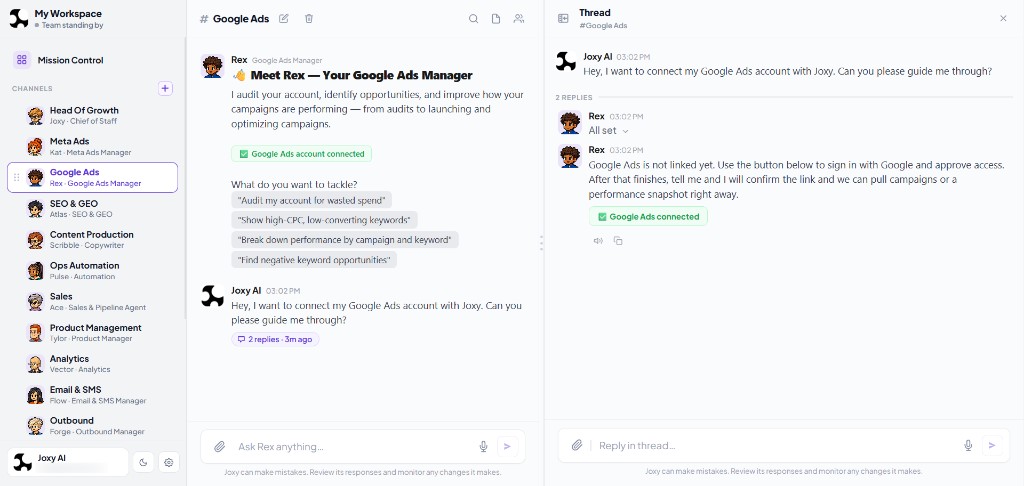
Back in chat, you should see Google Ads account connected
Most failed connects happen when Google login finishes but no Ads account is selected/shared before the window is closed.
3. After connect
- Ask Rex in the Google Ads channel for spend, conversions, ROAS, and campaign performance
- If you connect more than one Google Ads account later, use a different label for each one
- If the wrong account was linked, ask the agent to disconnect Google Ads, then connect again
Connecting links your existing Ads account for use in Joxy. Account changes still go through normal chat confirmation when an agent proposes a write.
Troubleshooting
Popup was blocked
Allow popups for Joxy, then ask the agent again and click the connect chip.
Login finished, but Joxy still says not connected
Ask “Connect Google Ads” again, click the chip, and make sure you select an Ads account in the connect window before closing it.
Wrong account connected
Ask the agent to disconnect Google Ads, then connect again and choose the correct account.
No accounts appear
Confirm that Google user can open the account in ads.google.com, then retry the connect chip with that same login. For MCC setups, switch into the child account once in Google Ads first.